
Introduction
This article explains how to use bulk actions in the box overview. Bulk actions let you select multiple boxes and apply changes to all of them at once, saving time and effort when managing large lists.
Step 1: Select Boxes
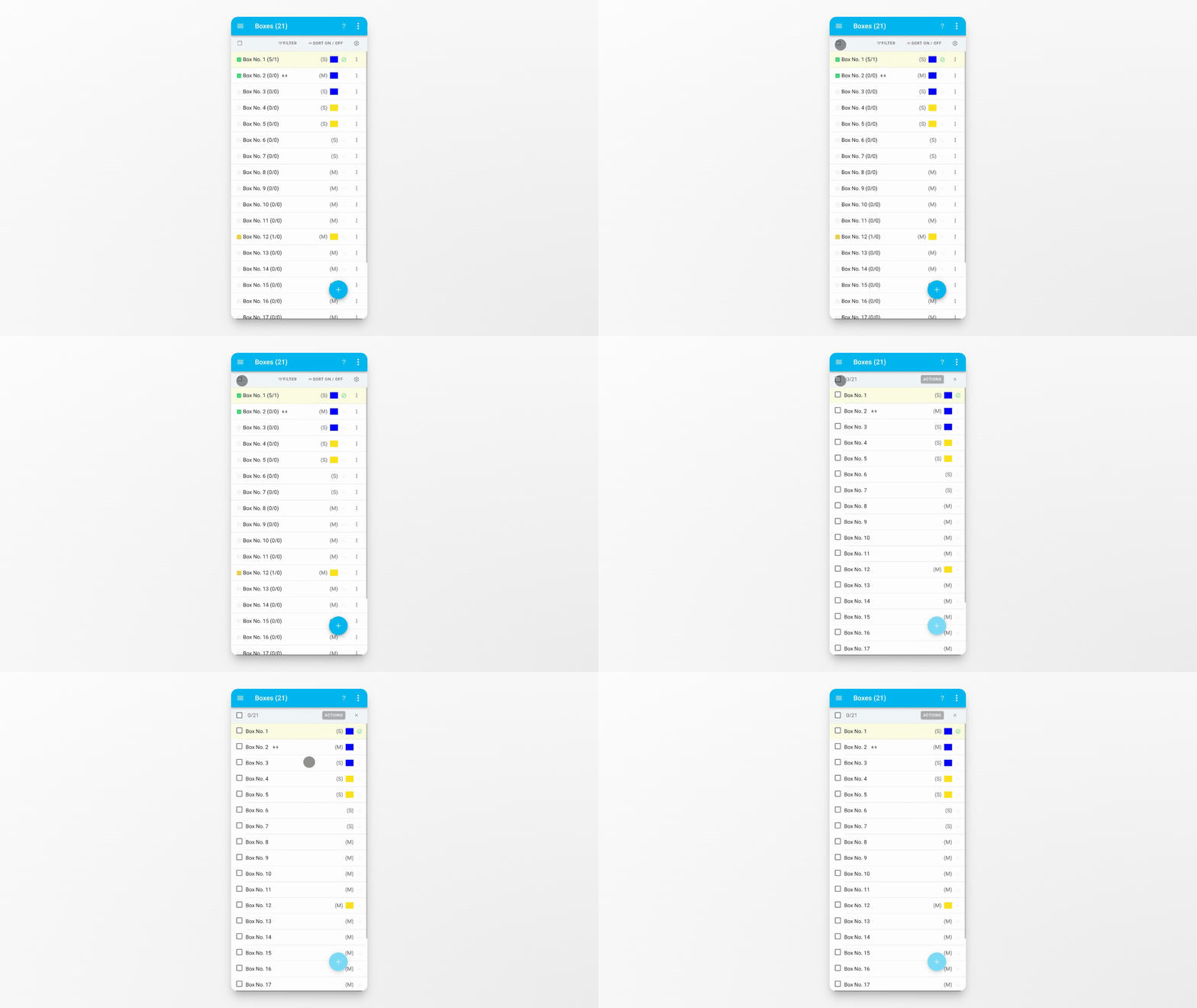
Tap the checkbox in the top left corner. This will display a checkbox next to every entry, allowing you to select or deselect them individually.
Step 2: Select All or None
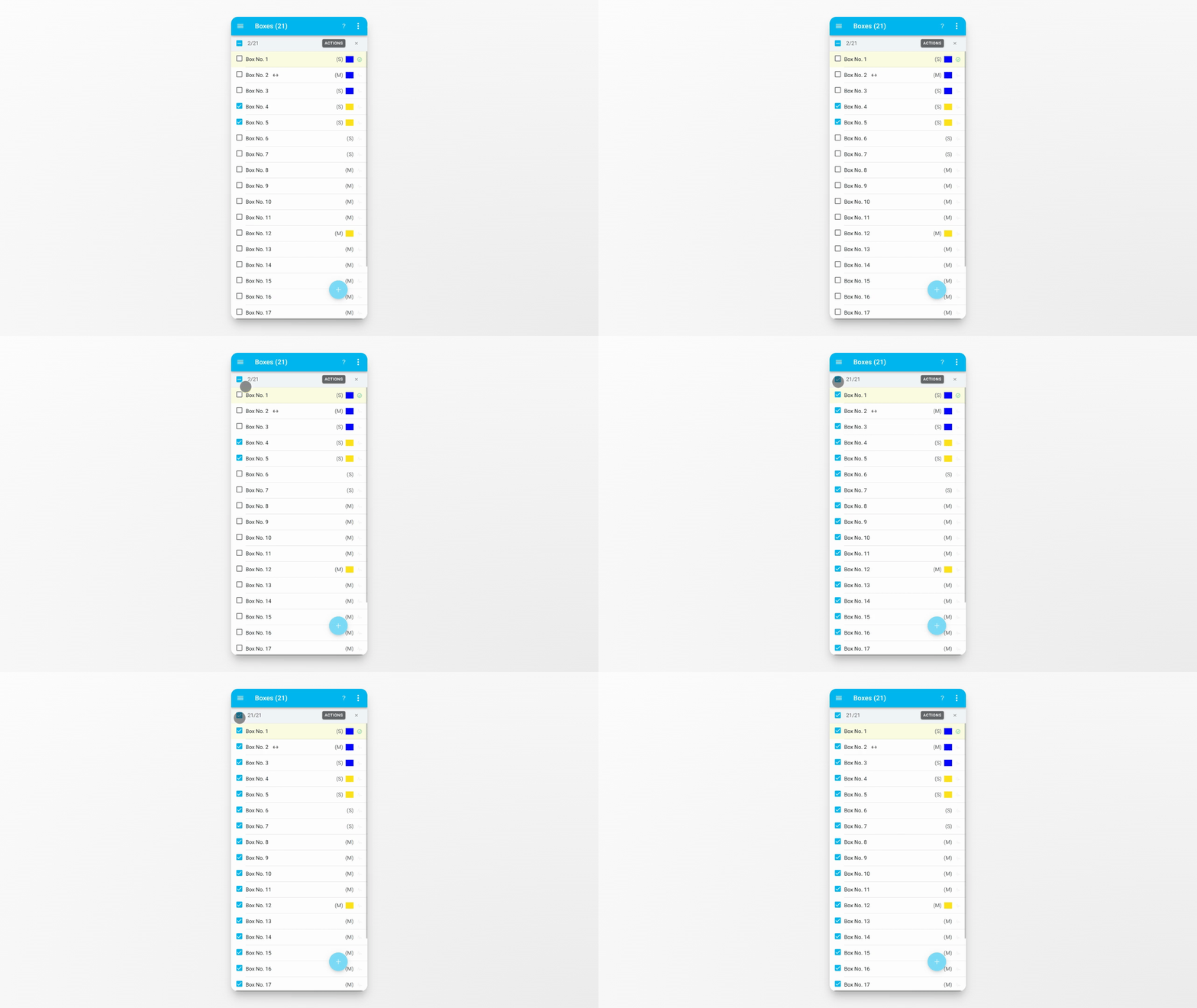
If you tap the top checkbox again, you can instantly select all entries or deselect them all at once. The number next to the checkbox shows how many items are currently selected out of the total list.
Step 3: Open the Action Menu
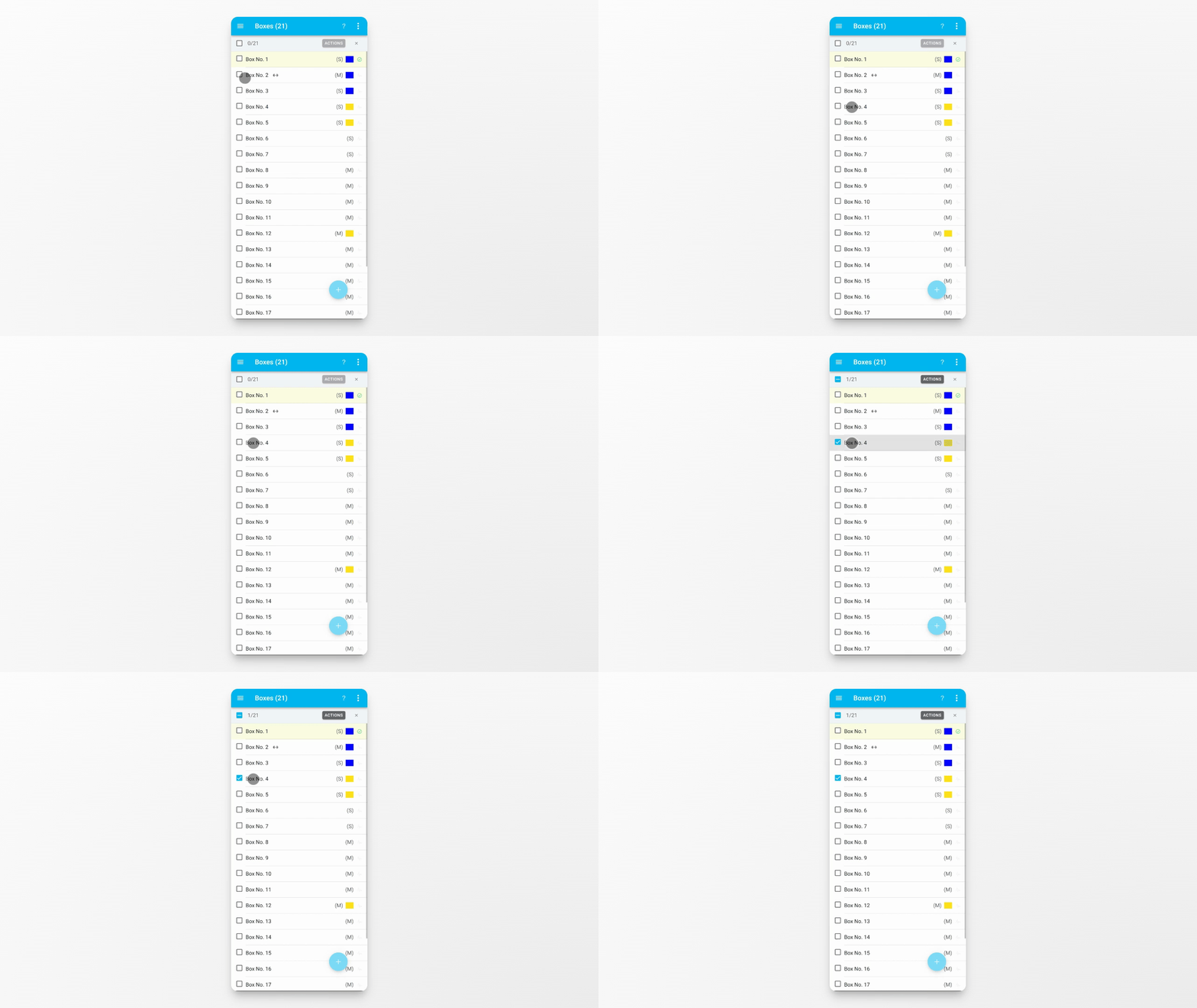
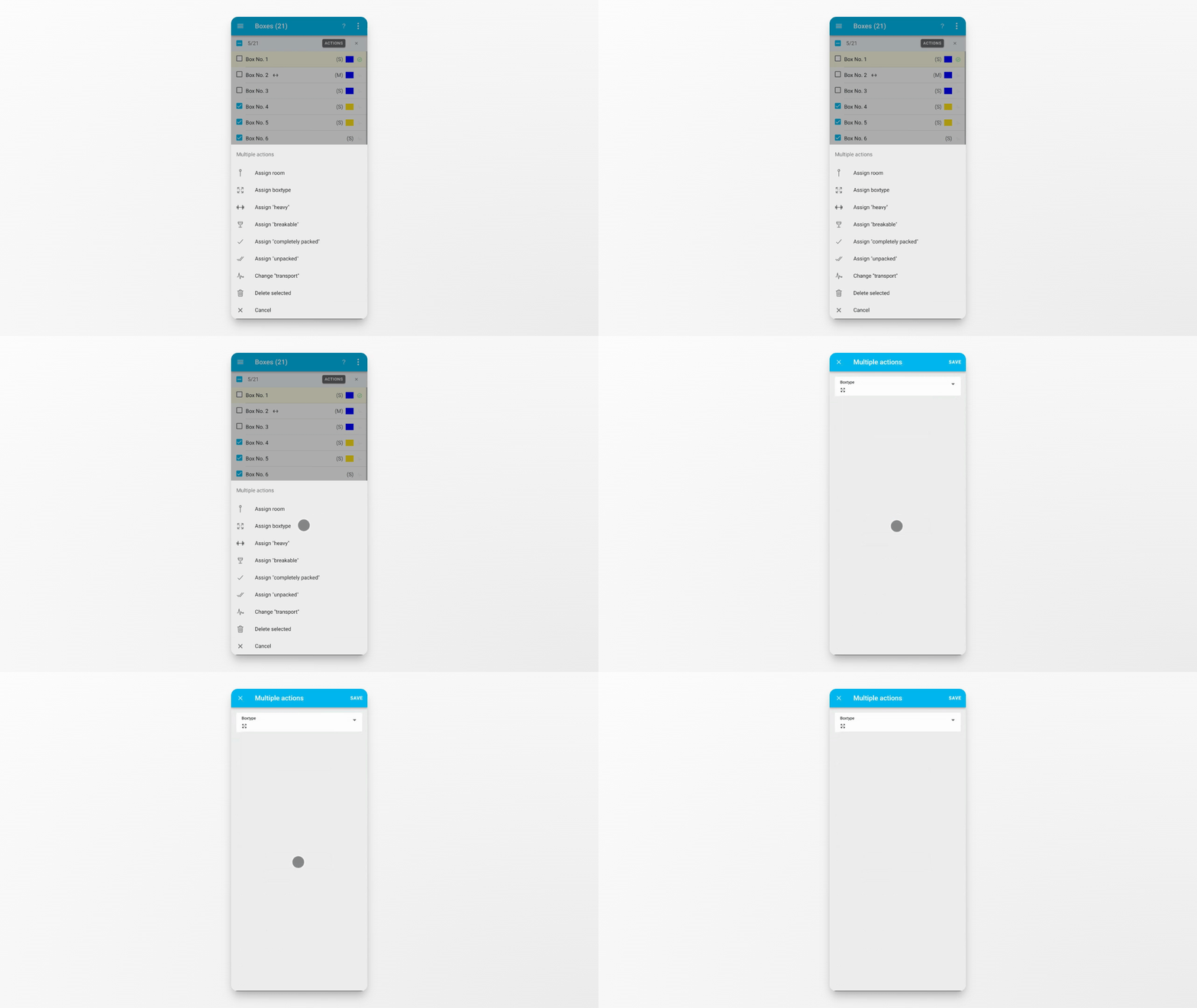
Once you have made your selection, open the Action menu to view available bulk functions.
Step 4: Choose a Bulk Action
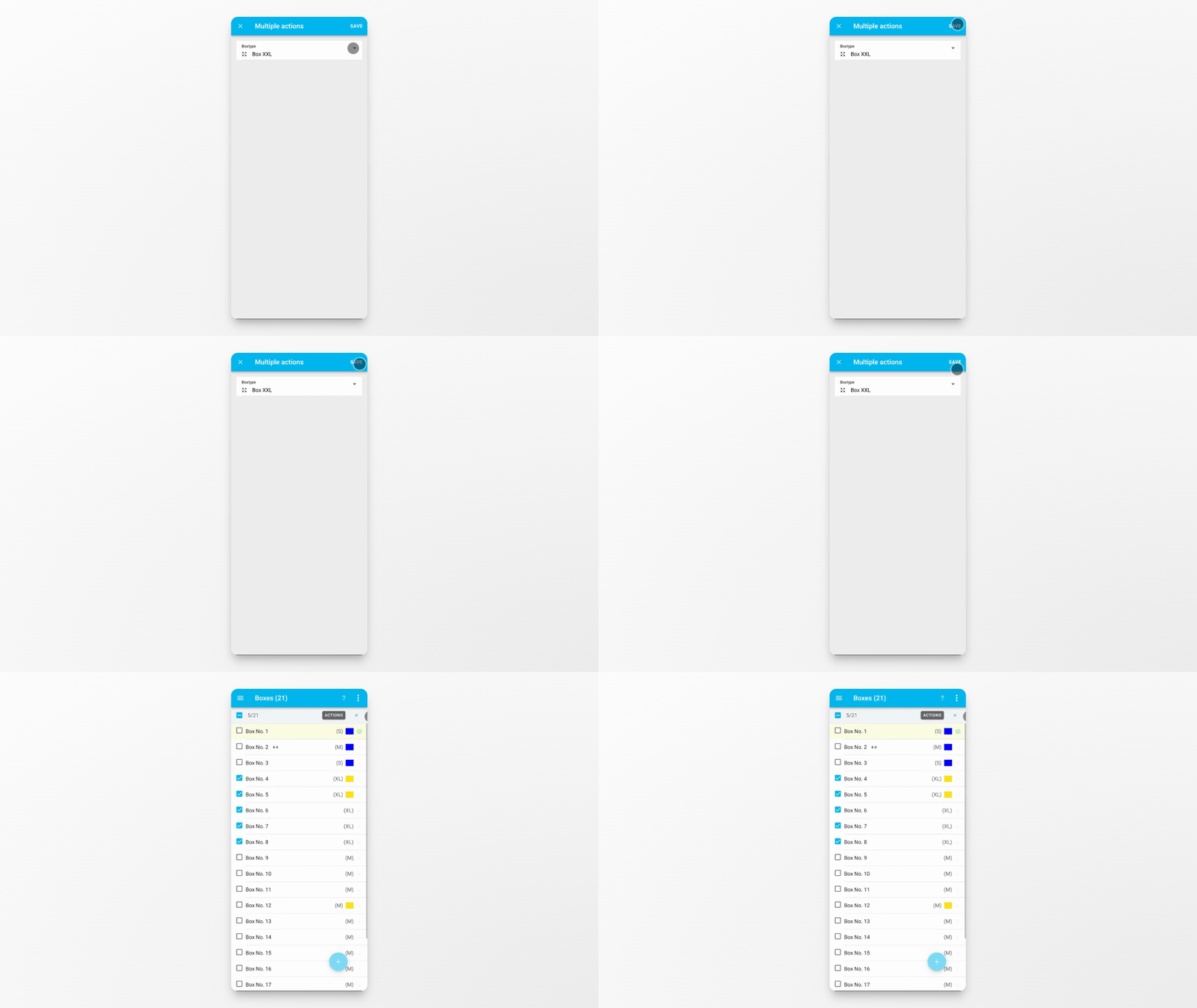
For example, you can assign a room, assign a box type, or update certain box properties for all selected entries at once. In this example, choose Assign Box Type.
Step 5: Select Box Type and Apply
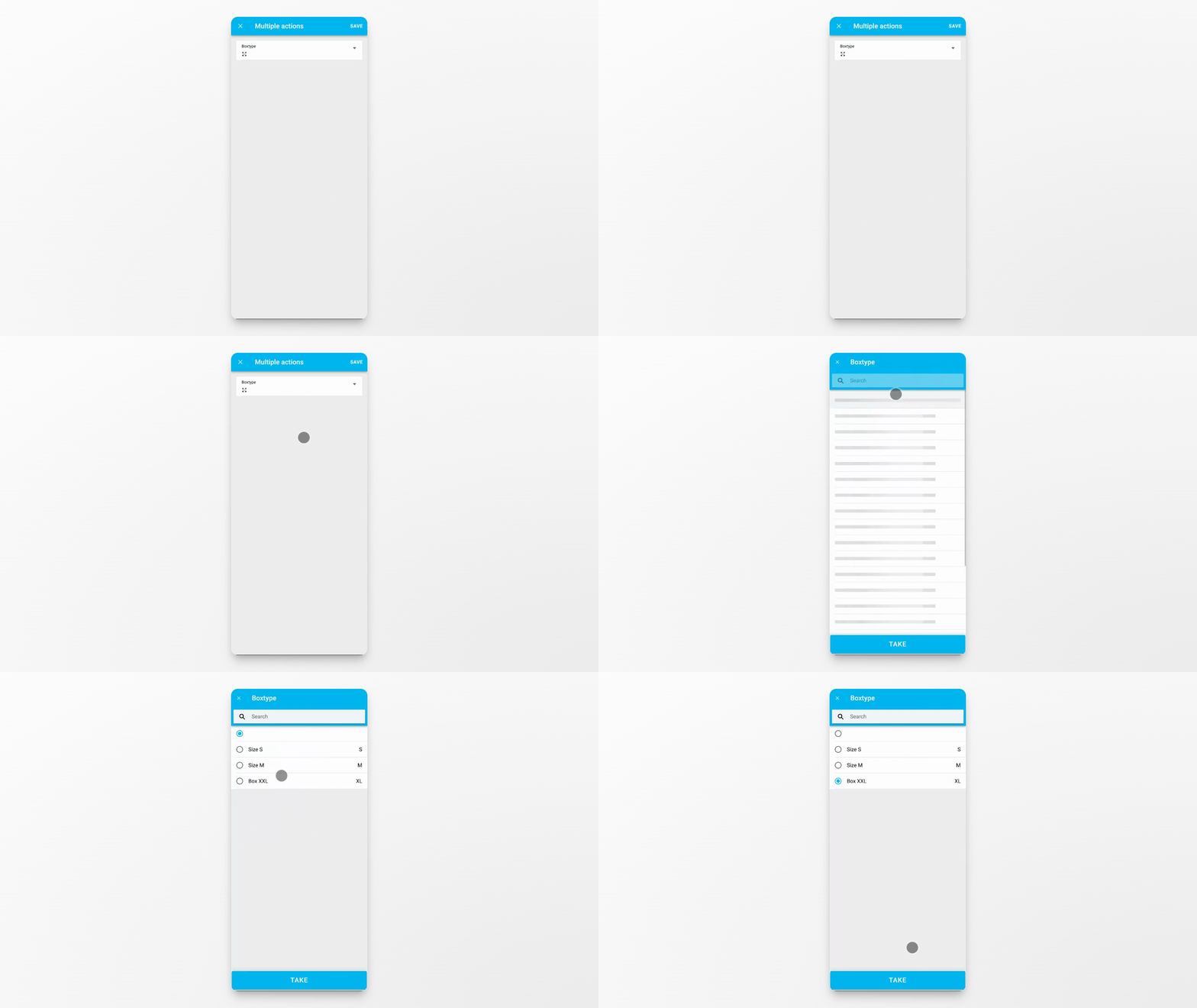
A new screen appears where you can select the box type you want to apply. You can also choose no box type, which removes the existing assignment from all selected boxes. Tap Save to apply the bulk action immediately.
Conclusion
You have learned how to use bulk actions in the box overview to efficiently manage multiple boxes at once. Use these steps to quickly update properties or assignments for large groups of boxes.