
Introduction
This article explains how the Inventory Value section works in your application. You'll learn about the different tabs, how values are grouped, and how to control the way inventory values are displayed and calculated.
Step 1: Choose Currency
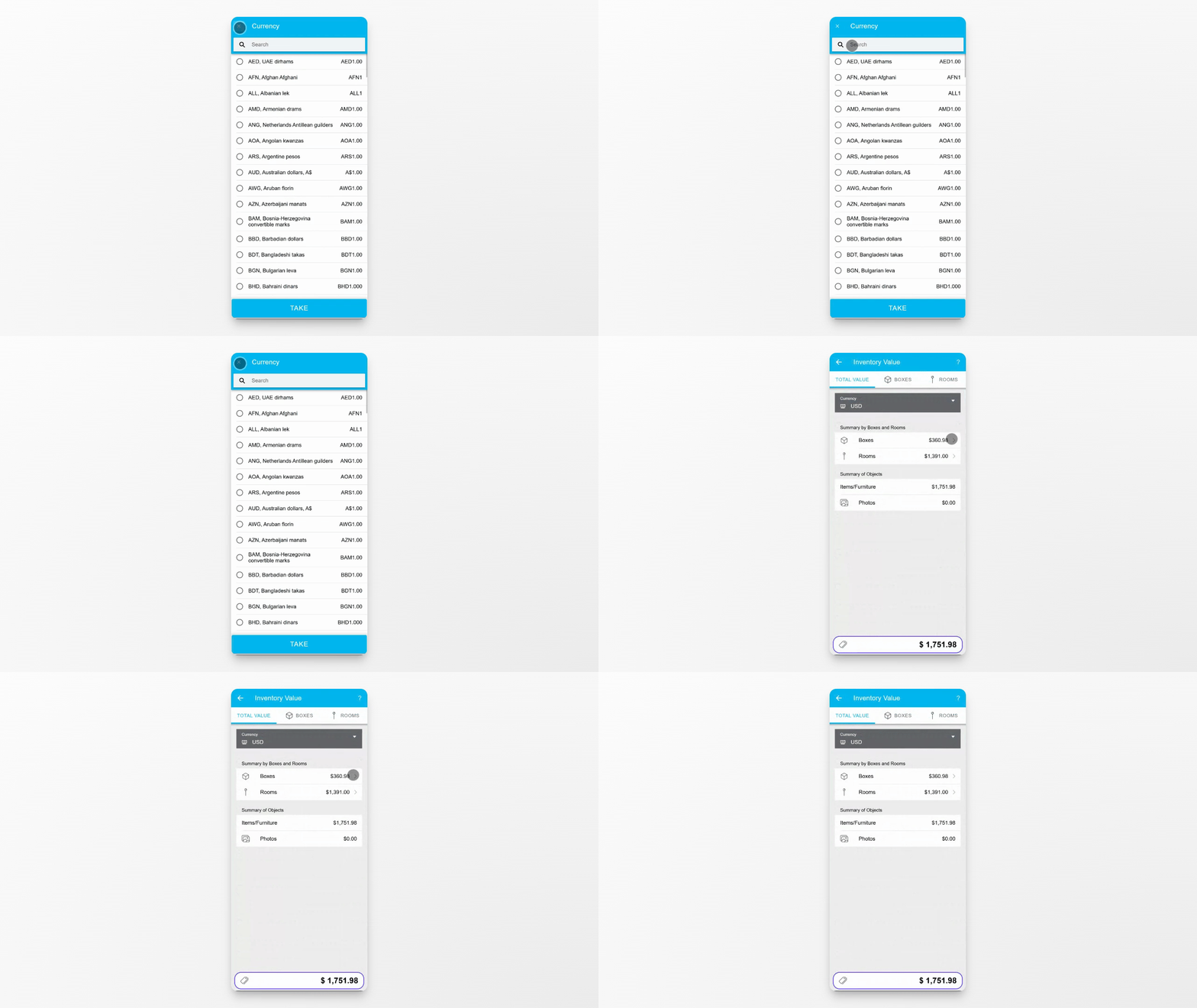
On the Total Value tab, select the currency in which all values should be displayed. This ensures consistency across your inventory value calculations.
Step 2: Review Value Summaries
View two summaries: one grouped by boxes and rooms, and another grouped by items and photos. This helps you understand your inventory from different perspectives.
Step 3: Explore Boxes Tab
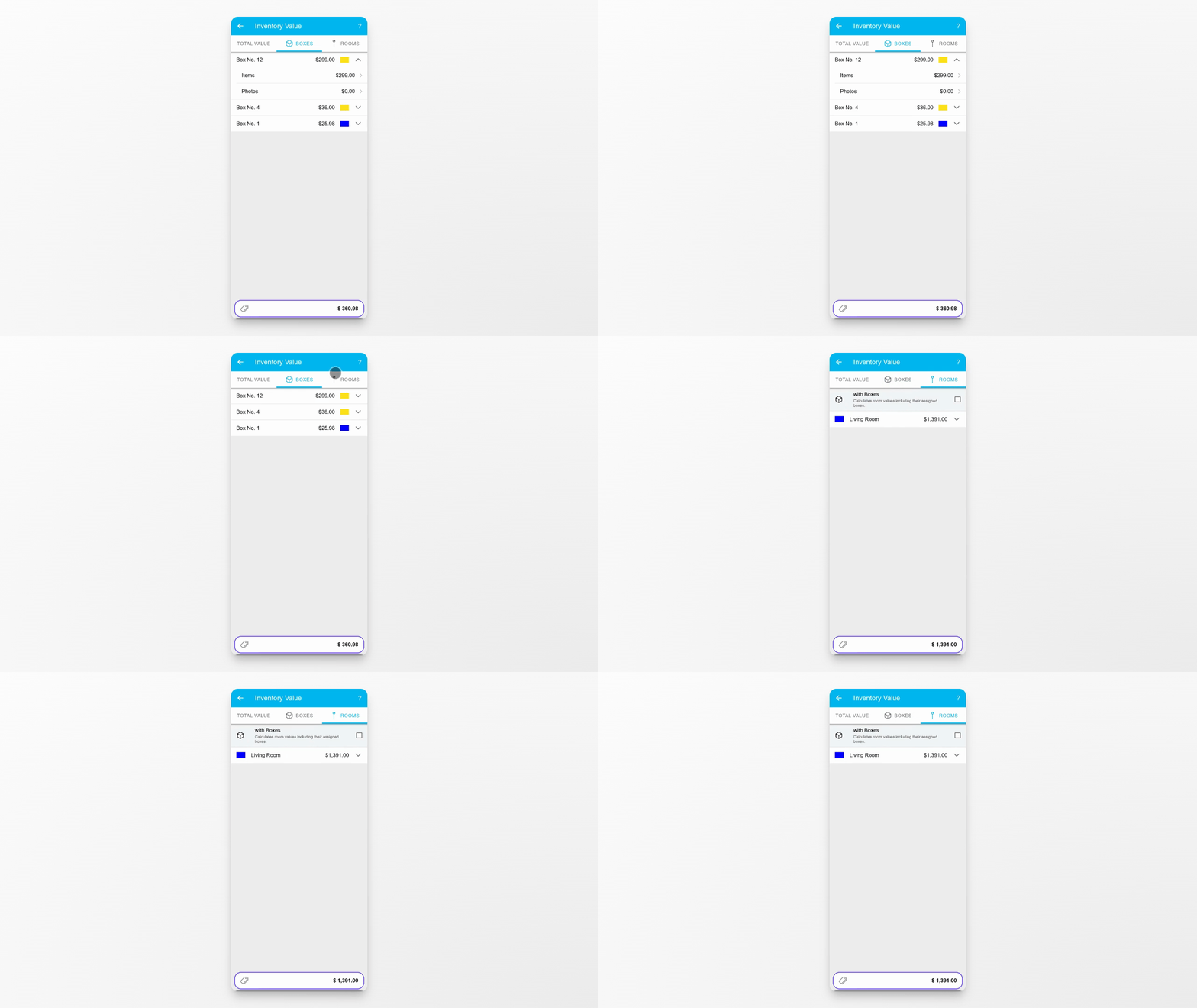
Go to the Boxes tab to see a list of all your boxes. Expand each box to view the value contributed by items and by photos inside that box.
Step 4: Adjust Room Value Calculation
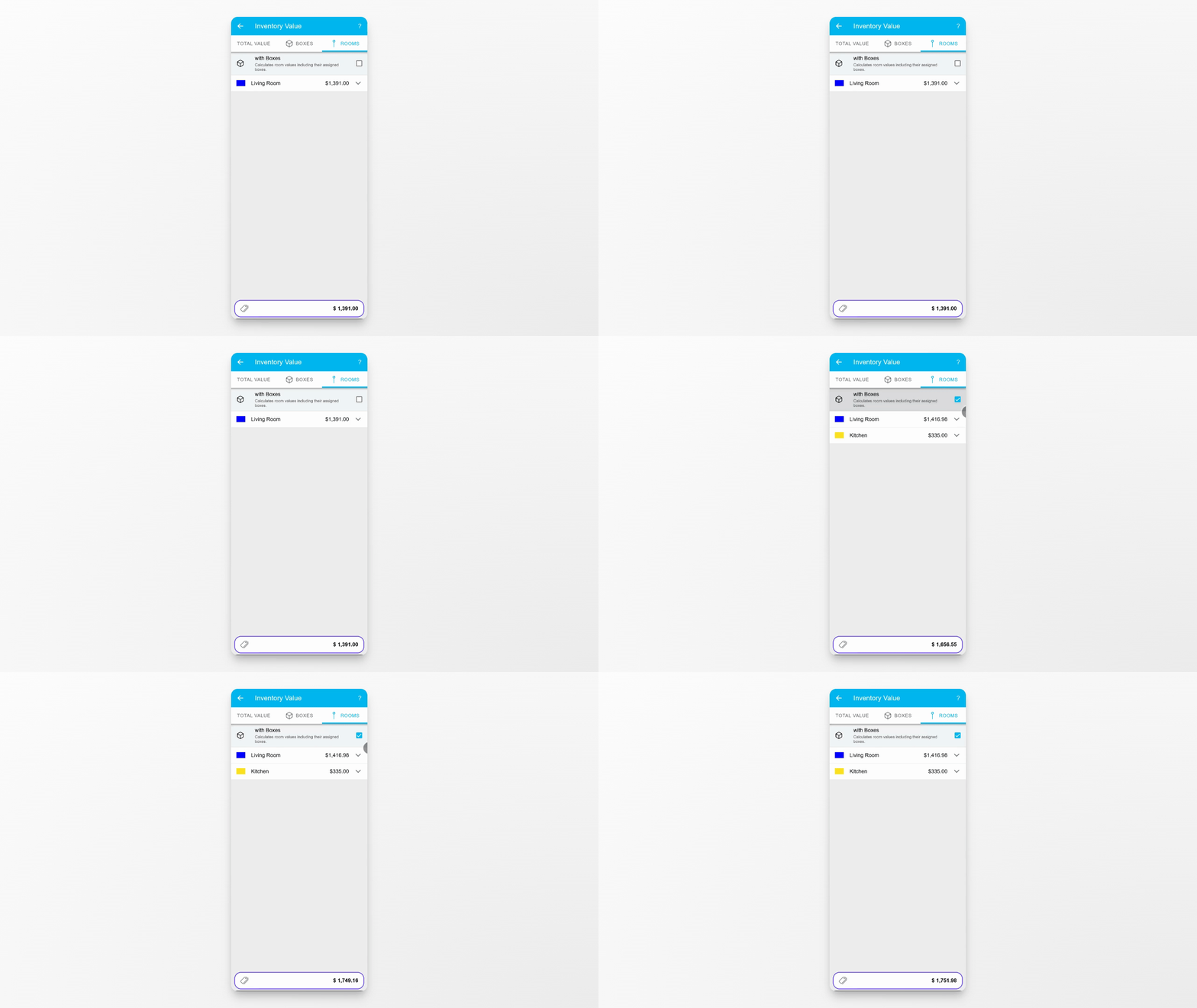
In the Rooms tab, decide whether assigned boxes should be included in the room's total inventory value. This setting gives you flexibility in how room values are calculated.
Conclusion
By using the Inventory Value section, you have full control over how your inventory values are grouped, displayed, and calculated. Adjust settings as needed to match your organizational preferences.