
Introduction
This article explains how the Volume section is organized and how to interpret its data. Understanding this section helps you see how space is allocated among box types and rooms, and where your volume comes from.
Step 1: Set Volume Unit
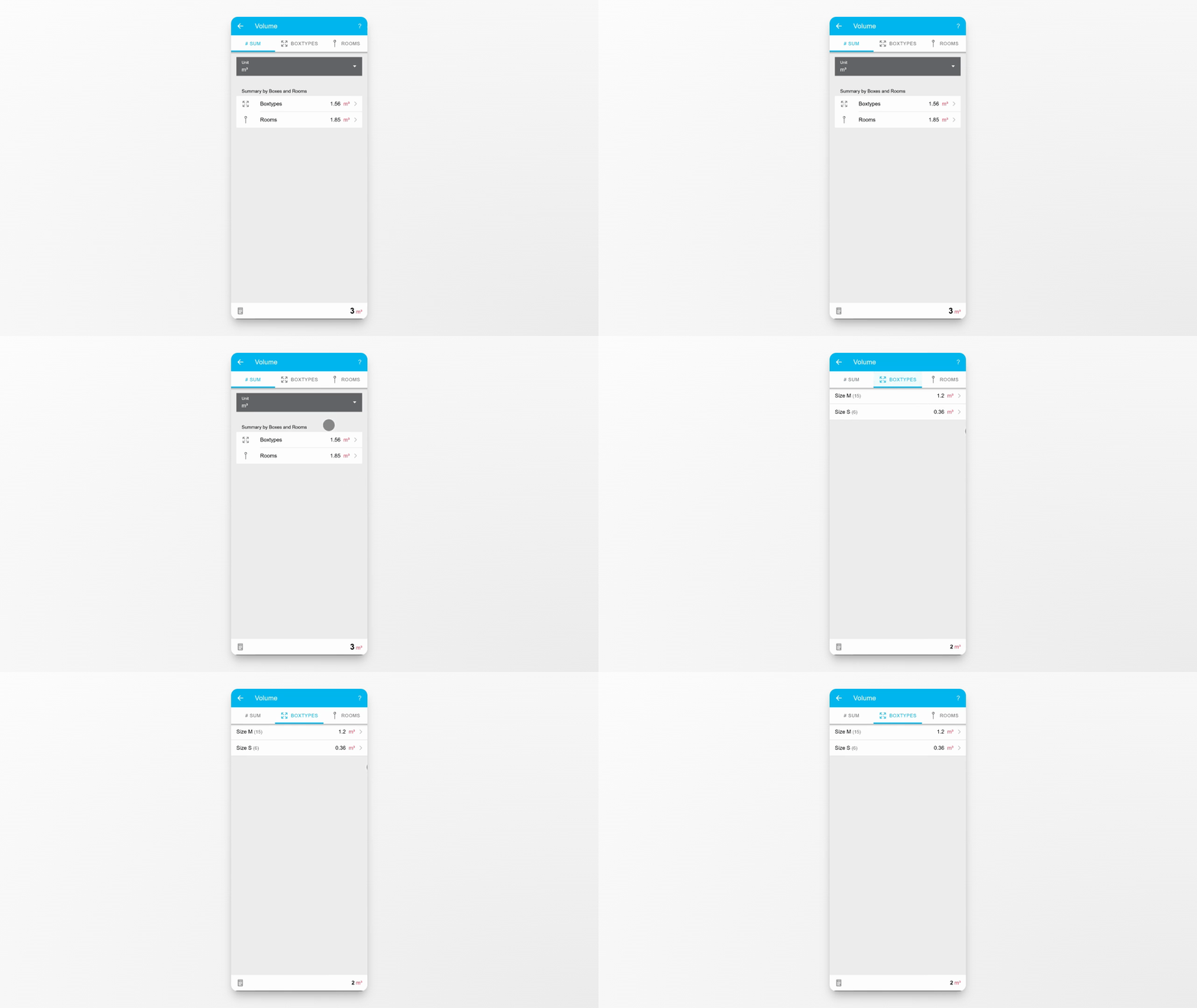
Go to the #Sum tab. Here, you can choose the unit in which all volume values are displayed. This lets you view the data in your preferred measurement unit.
Step 2: Review Total Volume Breakdown
The total volume value is split into two parts: Box types and rooms. This split allows you to quickly see how much space each category occupies.
Step 3: View Box Types Volume
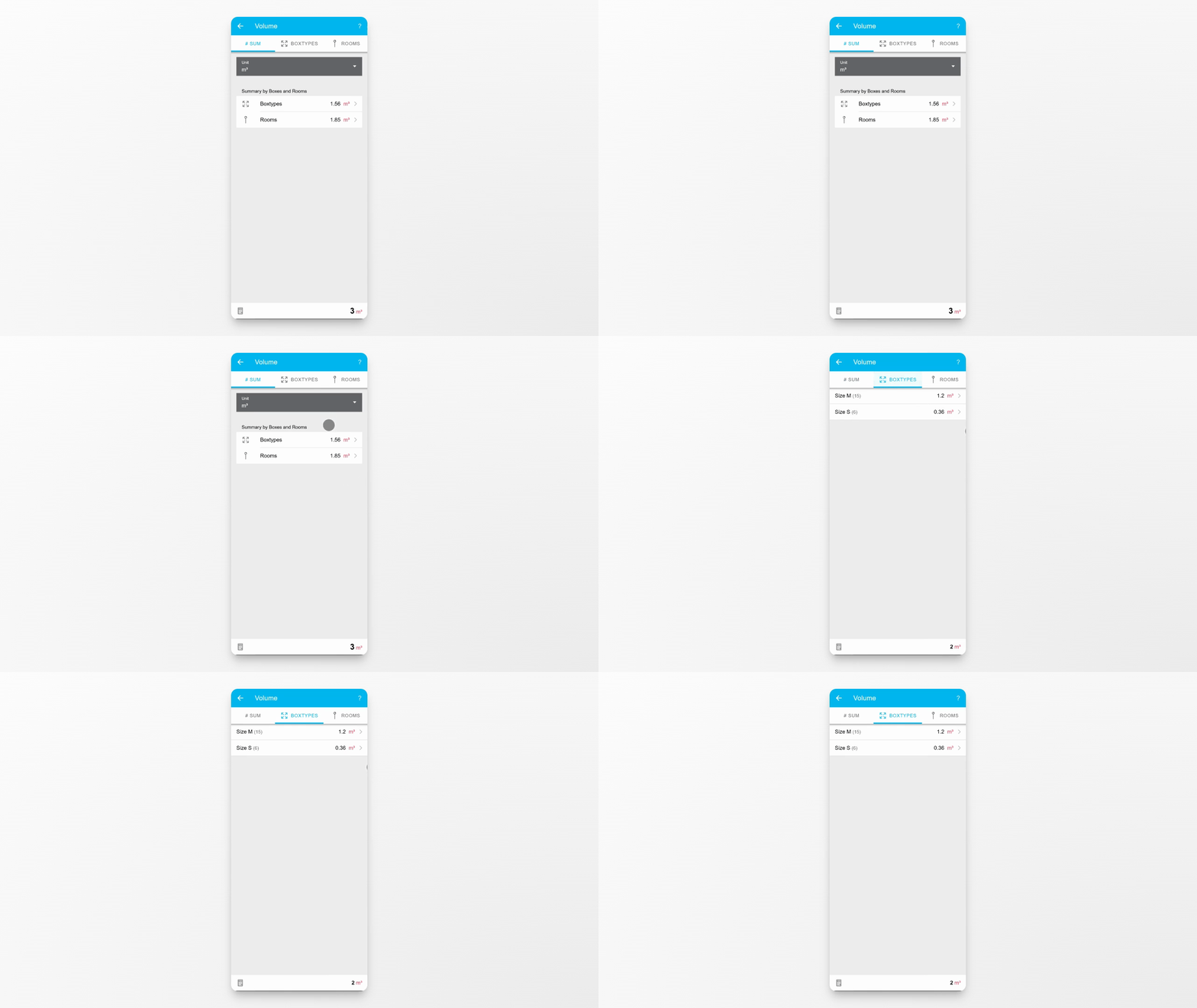
Click on the Box Types tab to see a list of all available box types. This tab shows how much volume each type occupies.
Step 4: Check Room Volumes
Go to the Rooms tab to find volume values for each room. This helps you understand how space is distributed across different rooms.
Step 5: Expand for Detailed Room Info
If you expand a room entry, you will see more detailed information, including how much volume comes from items and how much comes from photos.
Conclusion
You have learned how to navigate the Volume section, switch units, and analyze the breakdown of space by box types and rooms. Use these features to better manage and understand your storage needs.