
Introduction
This article explains how to add items to a box using the app. You'll learn how to input item details, use suggestions, and add multiple items efficiently.
Step 1: Open the Box
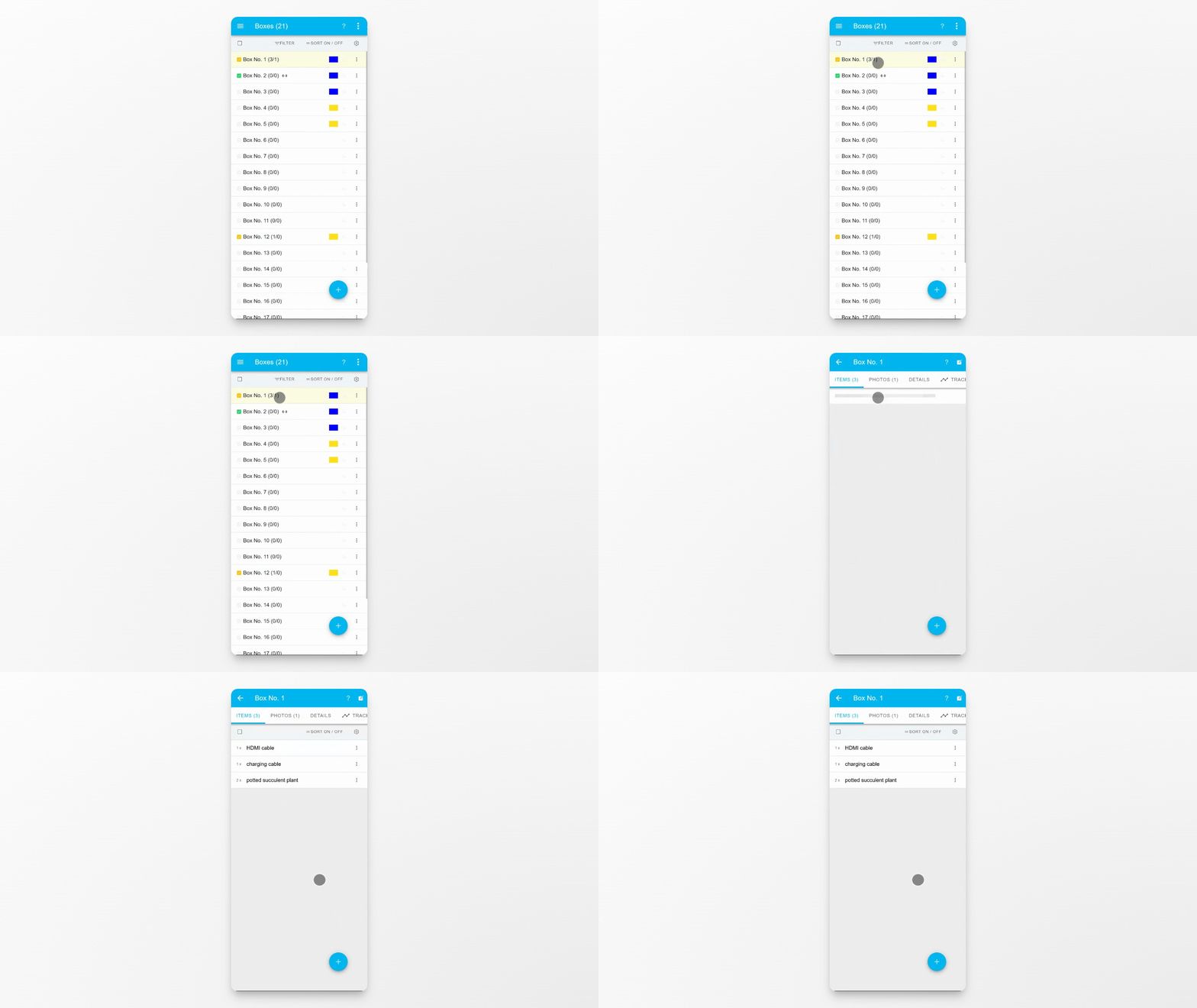
Open the box you want to work with before adding new items.
Step 2: Tap the Plus Button
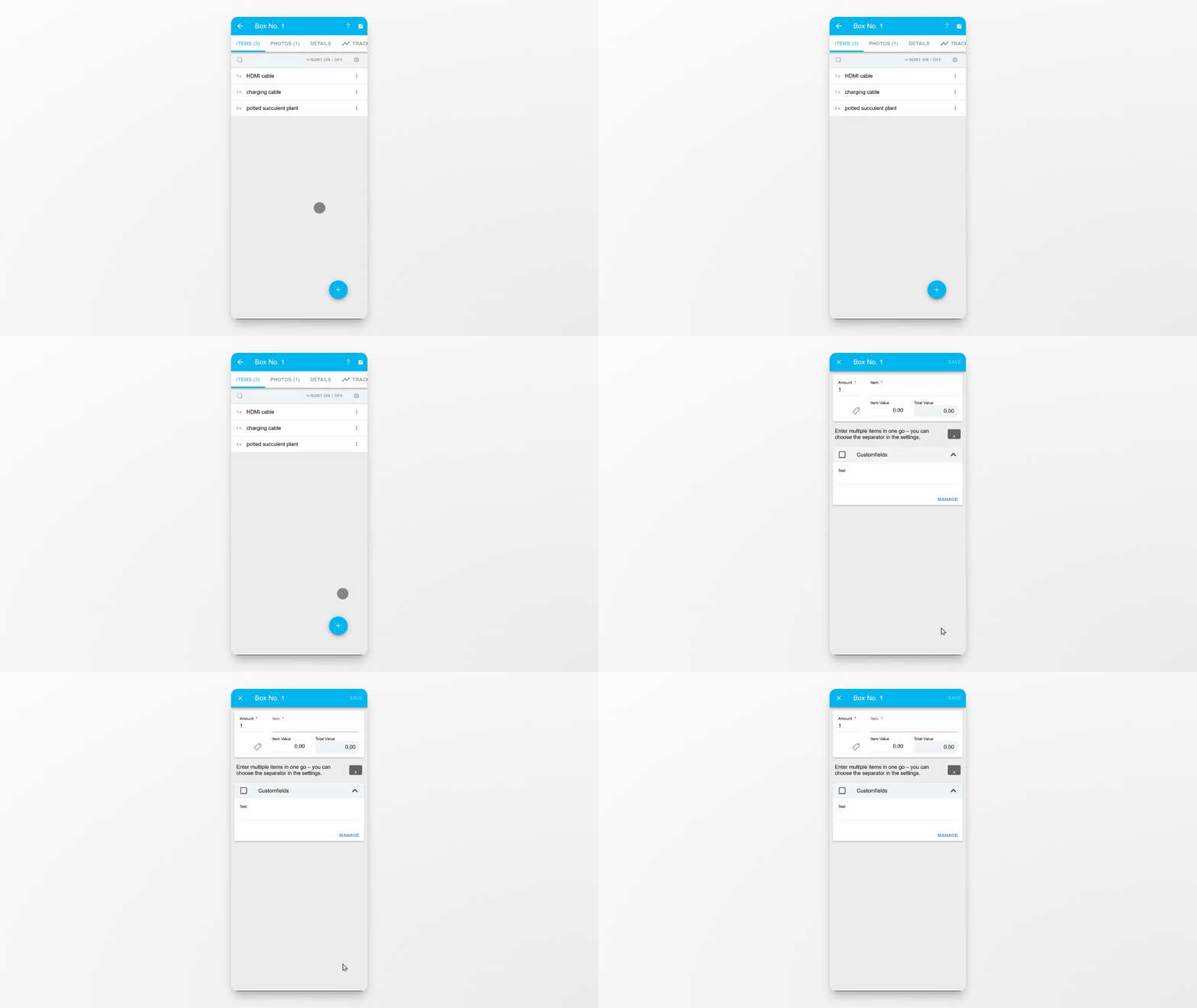
Tap the plus button to start adding a new item.
Step 3: Enter Item Details
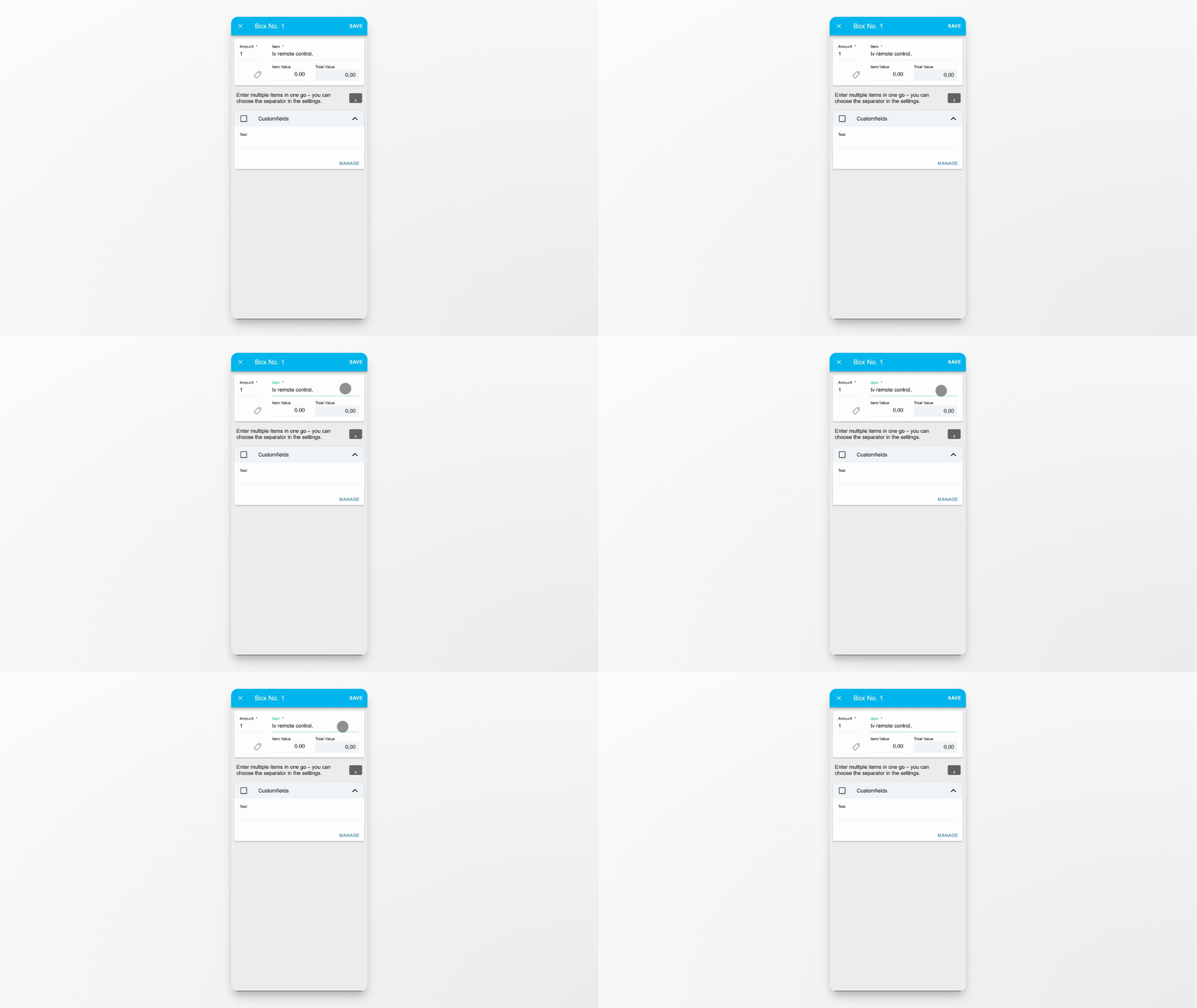
On the new screen, enter the item title, quantity, and optionally a price.
Step 4: Use Suggestions or Custom Names
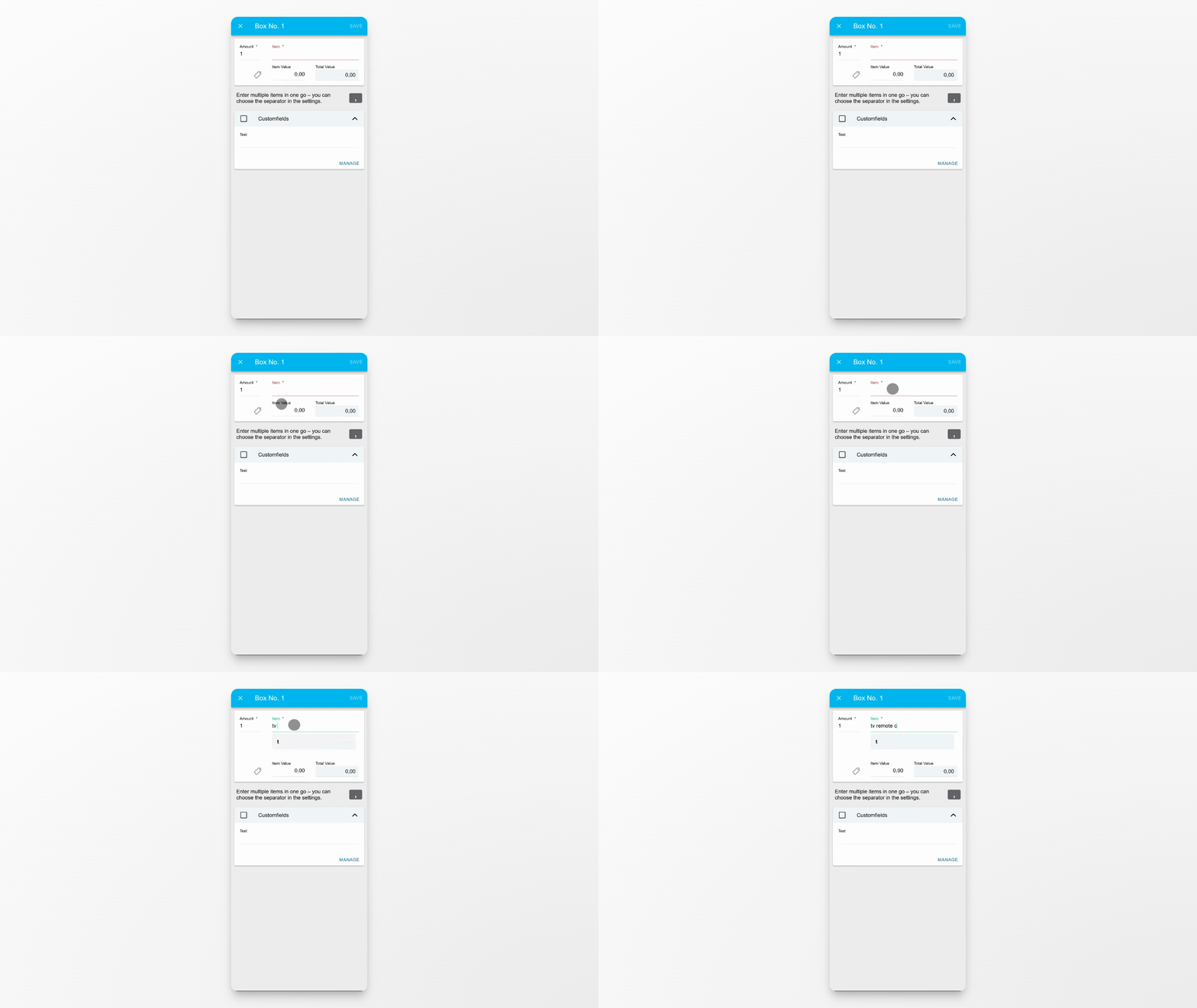
While typing the title, the app will show suggestions. You can select a suggestion or enter your own custom name.
Step 5: Add Multiple Items
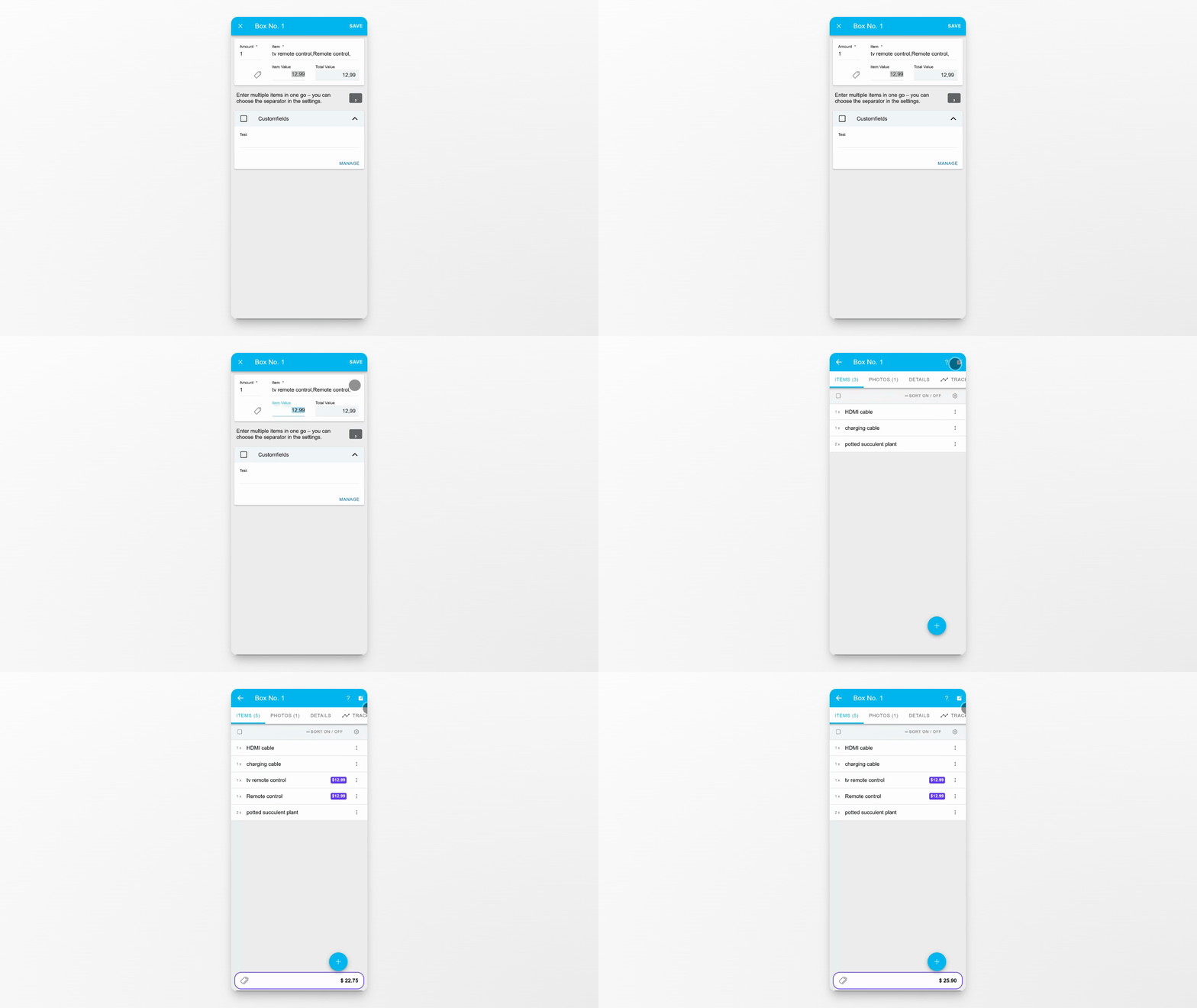
You can add multiple items at once by typing additional item names one after another.
Avoid entering a price unless all items share the same price.
Step 6: Save the Items
When finished, tap Save. The item or items will be added to the box immediately.
Conclusion
You have now added items to your box, either individually or in bulk. Review your box to confirm the new items are listed.