

Introduction
This article explains how to create a new room in the app, including setting its title, shortcut, and color for better organization.
Step 1: Start Room Creation
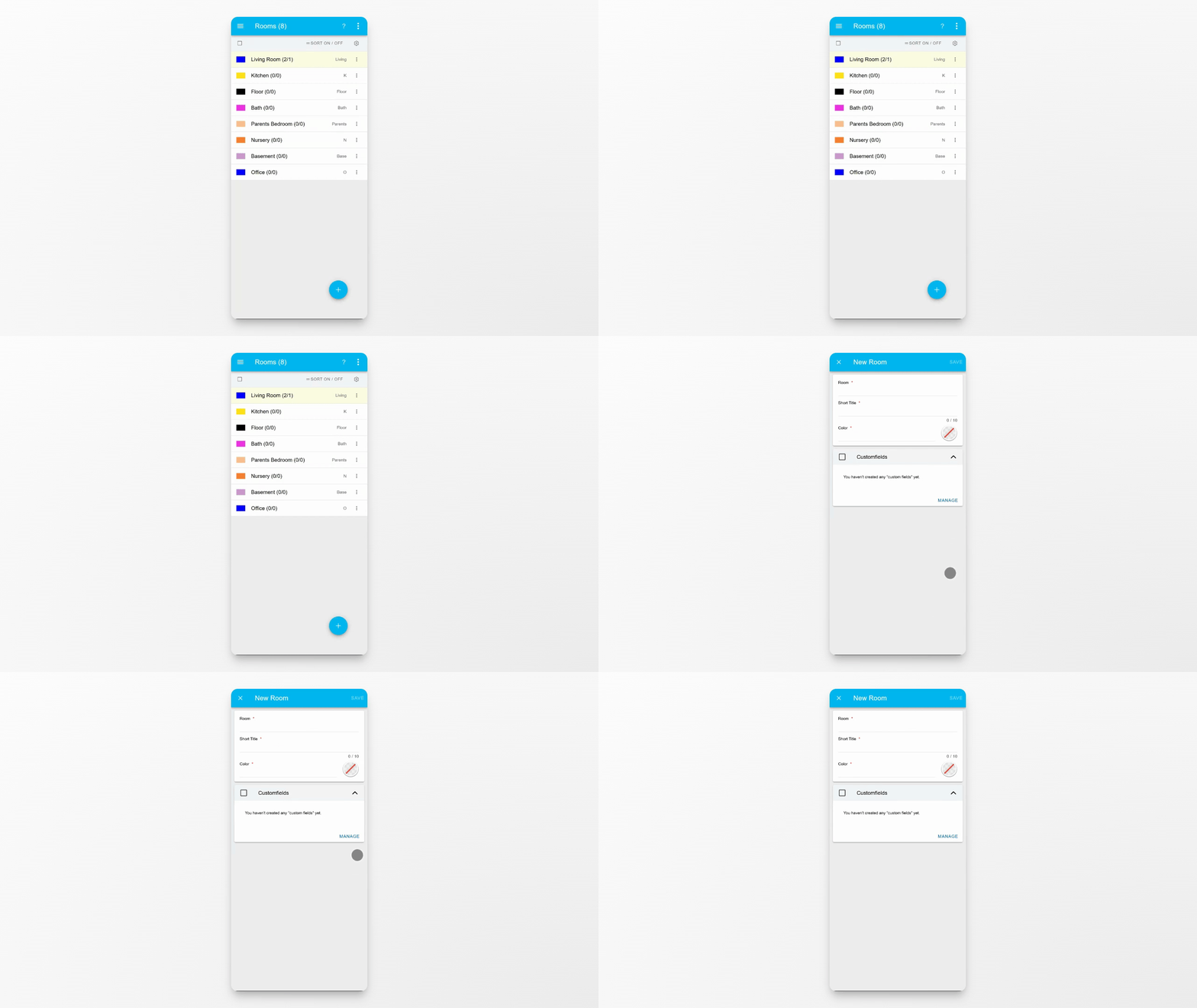
Tap the plus button on the new screen to begin creating a room.
Step 2: Enter Room Title
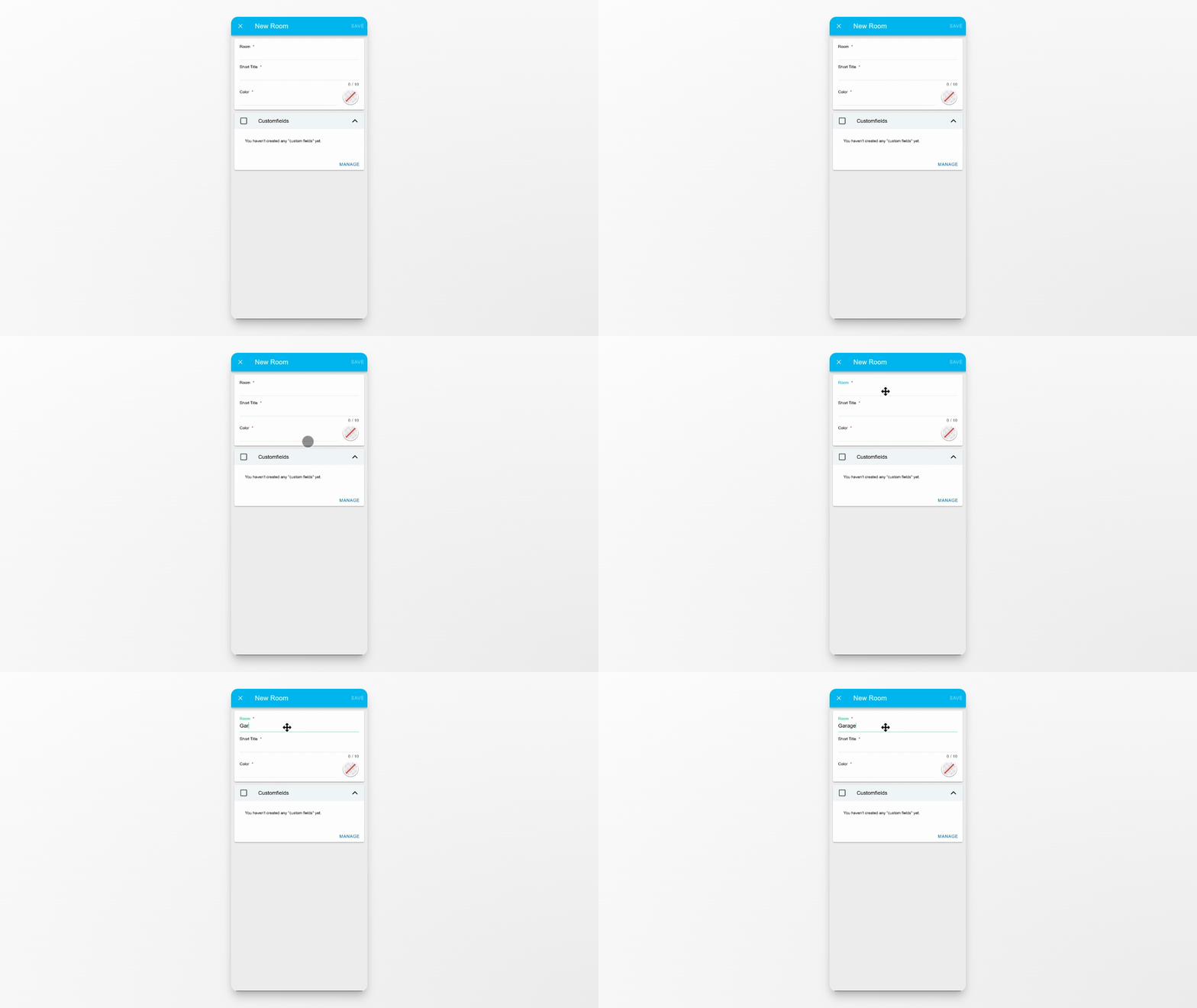
Type in the title for your new room.
Step 3: Set Room Shortcut
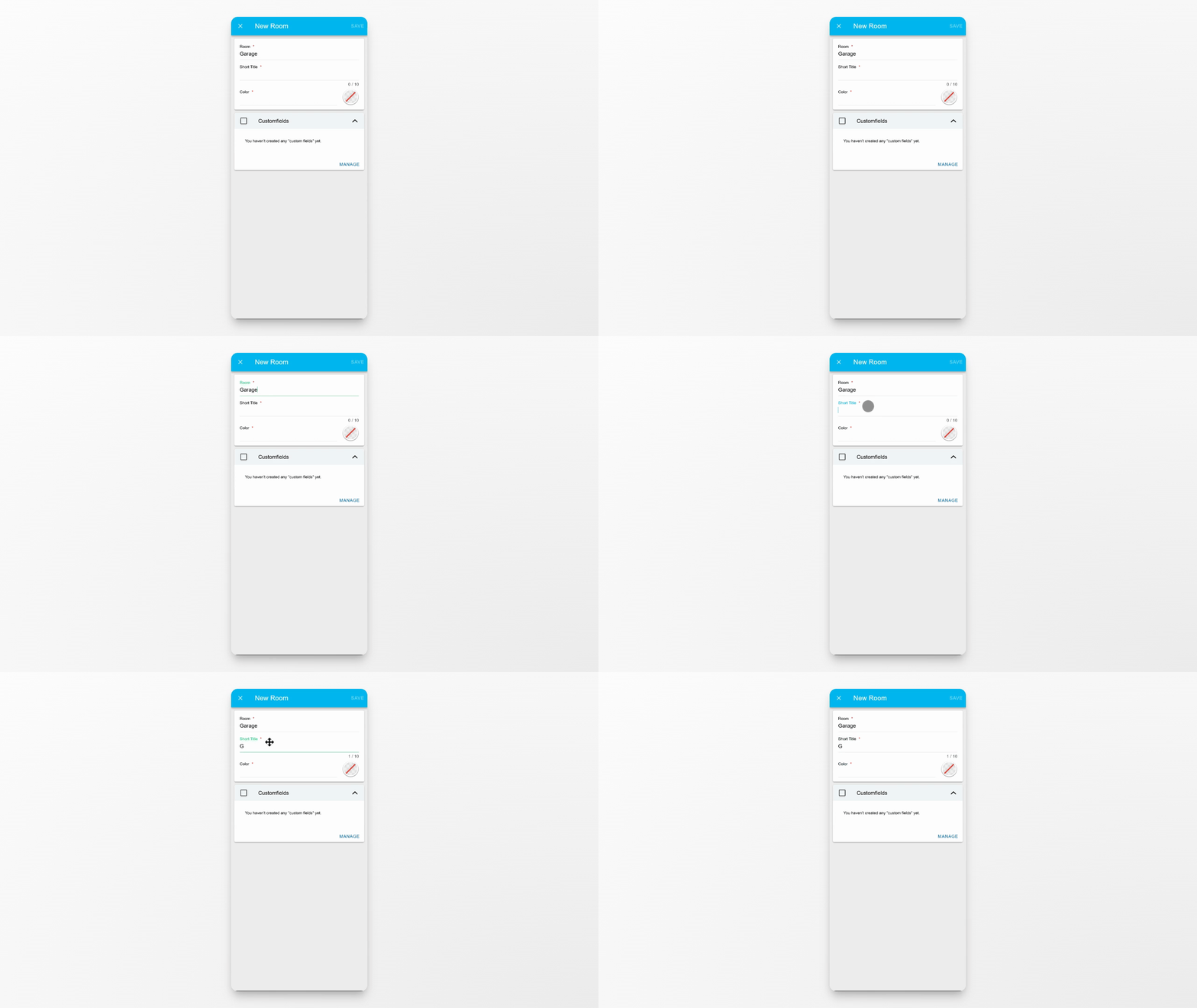
Enter a shortcut, which is a short identifier made up of letters. If the shortcut is already taken, you will need to choose a different one.
Step 4: Pick a Room Color
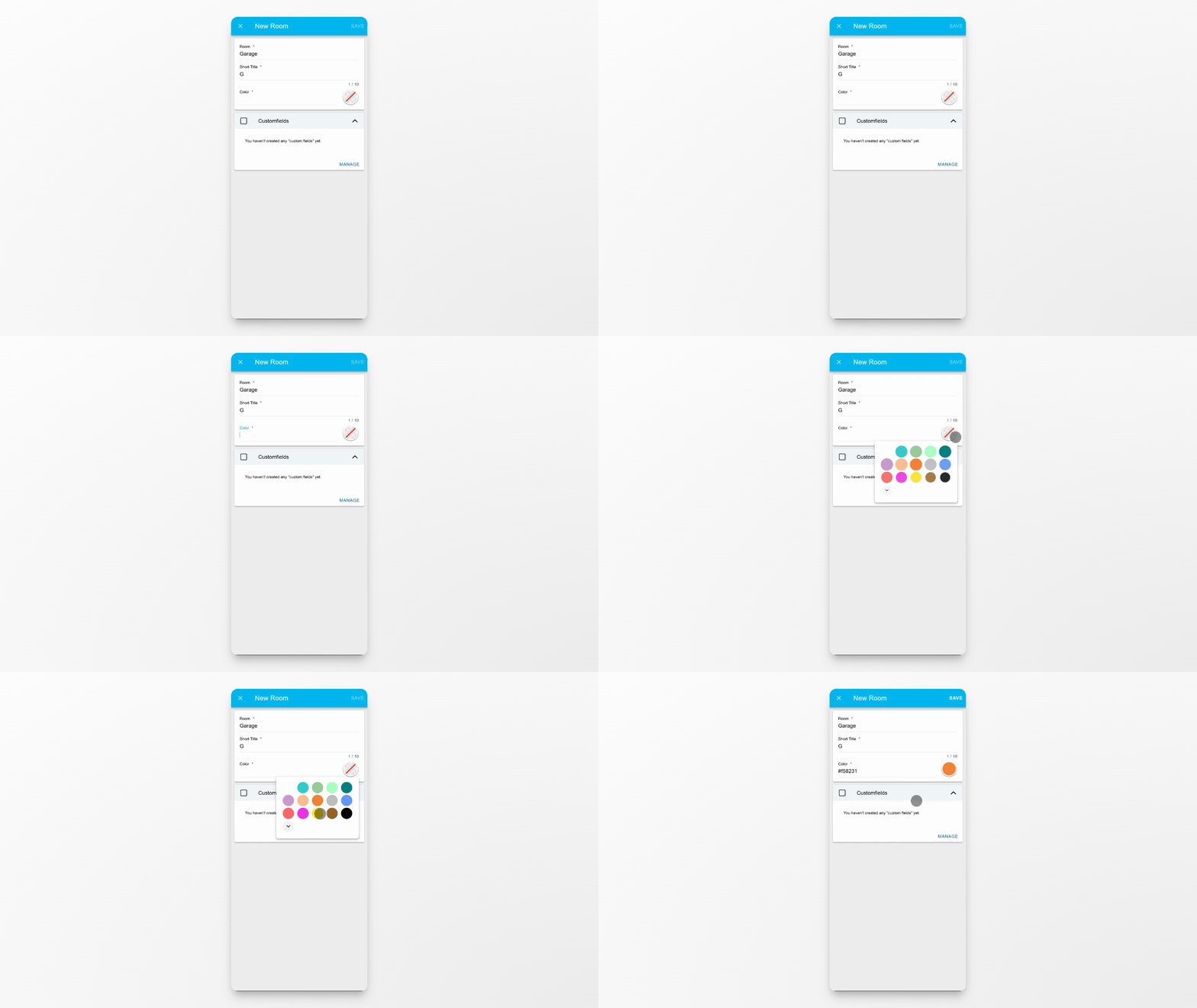
Select a color for the room to help visually organize your boxes.
Step 5: Save the Room
Once all details are entered, tap Save to create the room.
Conclusion
Your new room will now appear in the room Overview, ready for use and organization.