
Introduction
This article explains how to use the PDF export feature in the app. You'll learn about the different export types, customization options, and how to download or share your exported PDFs.
Step 1: Open the Export Screen
Access the export screen to view available PDF export options.
Step 2: Select Export Type
Choose from PDF types such as box and room overviews, inventory summaries, labels, checklists, and custom fields.
Step 3: Configure PDF Settings
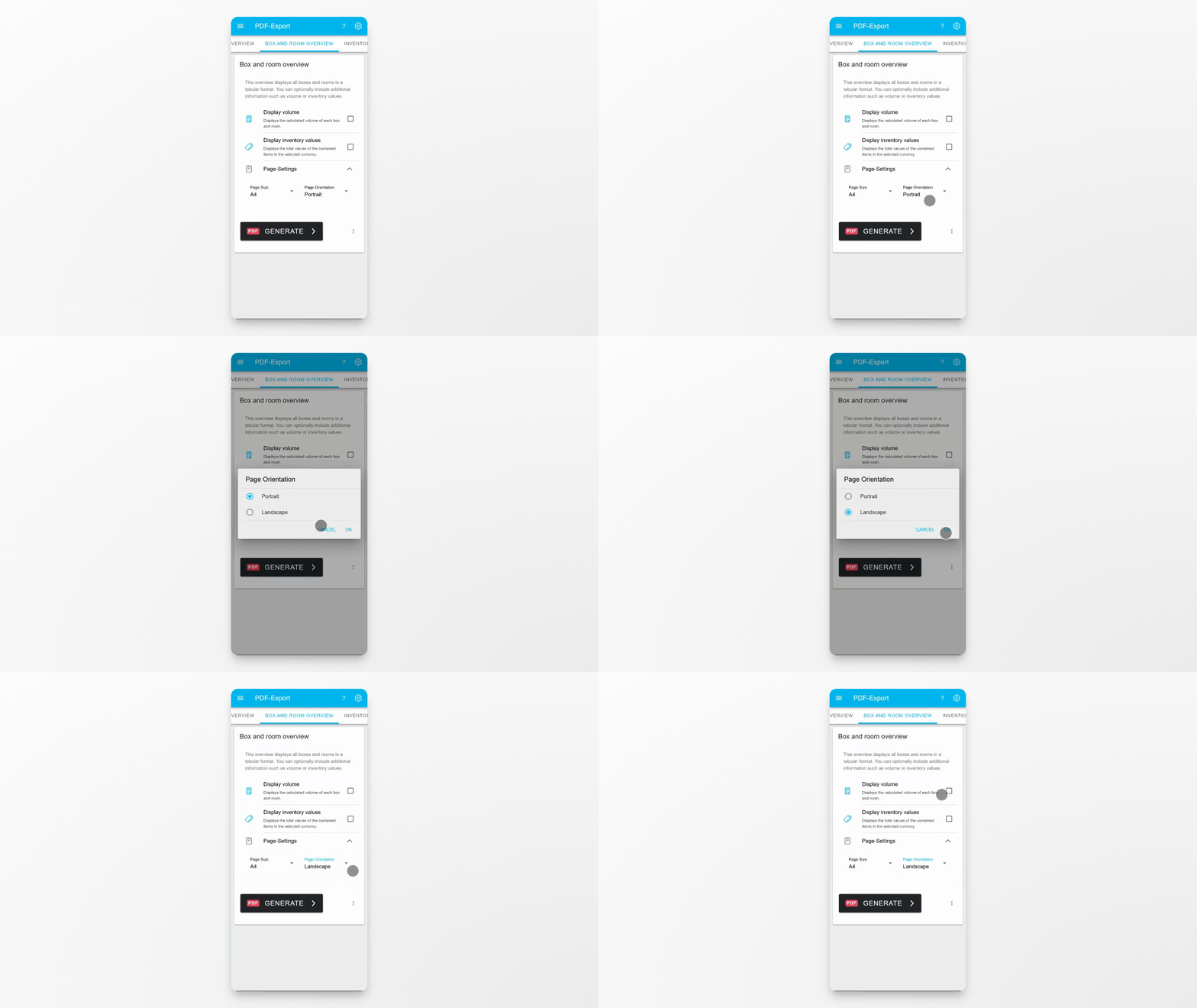
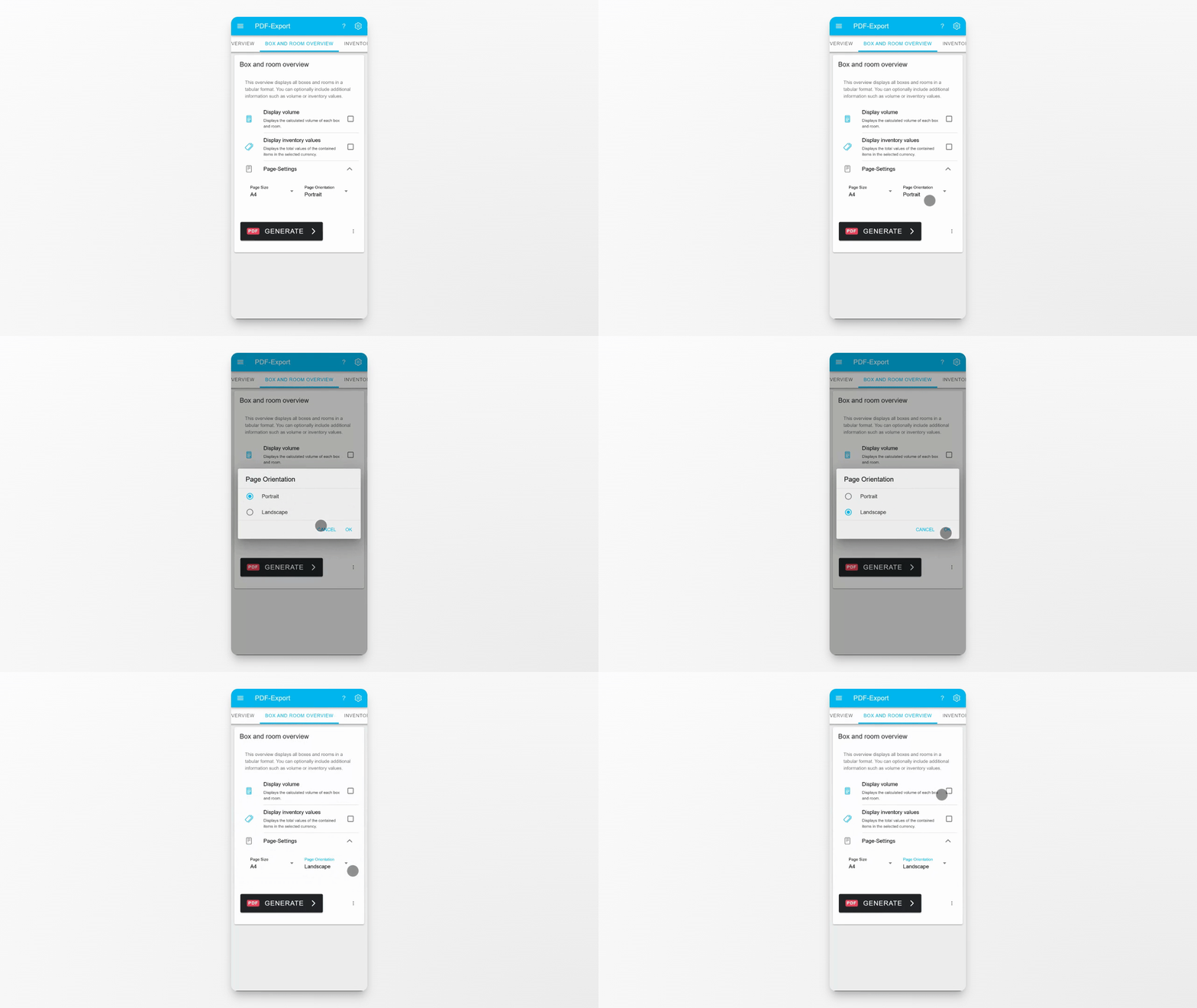
Select your preferred page size and orientation (portrait or landscape). Tap the gear icon to access advanced settings and further customize your export.
Step 4: Download or Share the PDF
After generating the PDF, download it to your device or share it directly from the app.
Conclusion
Using the export screen, you can generate, customize, and share PDFs or CSV files to suit your needs. Explore the available options to make the most of your data exports.